
Springside Primary School - ICT Information Sheet
ICT Staff Representatives
| Name: | Title: | General Responsivities | Ext. |
| Adam Lacey | DE Specialist Tech. | Department Specialist Technician | 1008 |
Quick Links
| Intranet | https://intranet.springside.vic.edu.au/ |
| Helpdesk (ICT & Maintenance) | https://helpdesk.springside.vic.edu.au/ |
| Compass | https://springsideps-vic.compass.education/ |
| School Website | https://springside.vic.edu.au/ |
Glossary:
• Helpdesk
• Staff Notebooks & iPads
• Access & Accounts
• Student Devices
• Printing
• Compass
• Google Drive
• Internet Filtering
Helpdesk
Logging a request for support:
The Helpdesk is accessible via this link: https://helpdesk.springside.vic.edu.au/, alternatively you can also use the Helpdesk icon on the Springside Intranet.
You can log both ICT and Maintenance requests through the support portal by choosing the desired option from the Type dropdown:
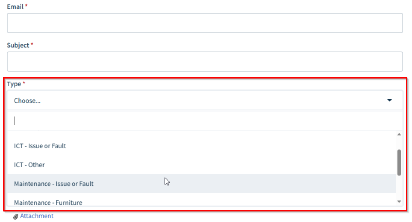
Logging issues via the ICT Helpdesk is the preferred way to access ICT support services unless they are urgent matters. Urgent matters are those where staff devices aren’t functioning at all.
You can also send an email (with subject beginning with ICT) to: support@springside.vic.edu.au.
When logging a job, please state your room number, a brief description of the issue and your availability.
Students don’t log helpdesk requests directly. Teaching staff are required to log issues on their behalf.
Jobs are prioritized on a school needs basis and may not be completed immediately.
If sending students to the ICT office, please call-in advance to ensure someone is available for assistance.
Staff notebooks & iPads
Notebooks
You must meet the following eligibility requirements to receive a DET Staff Notebook:
Obtain employment at a time fraction of at least 0.4 (2 x 7.6-hour days).
Provide evidence of registration on the Department's central payroll system (eduPay).
Work onsite/offsite meeting the minimum requirements set by your time fraction.
It should be noted that staff notebooks must be returned to the ICT Office prior to any leave that will last longer than a term.
It is your responsibility to maintain the security of your staff notebook, both on and off school premises. We recommend you follow the below guidelines:
Never leave your Notebook unattended and visible inside a vehicle - lock it in the boot or security cage.
If you leave your notebook unattended, please put the notebook away first (out of sight is best) and if possible, lock the door behind you.
Lock your screen when away from your device to protect your data.
If the notebook is lost, stolen or damaged you need to advise ICT Staff and/or the principal immediately.
iPads
Due to the limited numbers of devices a single staff iPad is assigned to each class and to individual specialist roles. If a class has a teacher split it is expected that the device is shared for the purposes of class room teaching.
Each iPad is provided with a protective cover and charger and will come preconfigured with wifi access and required apps, classrooms equipped with a TV are compatible with Airplay which allows you to wirelessly display your iPad, instructions can be found here: How to wirelessly connect to a classroom room TV.
At the end of each year staff iPads are returned to ICT to be wiped and assessed before being reassigned for the next teaching year.
Access and Accounts
Staff
Springside is a department integrated school; this means that your eduPass / eduMail credentials will provide you access to most resources such as:
Compass
Google Drive
eduStar Wireless
Notebooks
Note: When accessing the school PaperCut integrated printers, you will need to use your TO number.
Important: If you have not done so you can enrol for self-service password resets so that if you forget your eduPass password at any point you can perform a reset, please see the guide located here:
https://www.education.vic.gov.au/Documents/about/department/staffuserguide.pdf
If you have forgotten your eduPass password and have not setup for self-service, you can contact the Department Service Desk by email, phone or visiting the DET Services Portal:
Phone: 1800 641 943
Email: servicedesk@education.vic.gov.au
DET Portal: https://services.educationapps.vic.gov.au/dp
Students
Students are provided with a @Schools account; this provides them access to the following resources:
Google Apps (Google Classroom, Gmail, Docs, Sheets, etc.)
Microsoft Office 365 (PowerPoint, Word, Excel, etc.)
Minecraft for Education
Staff can access student login details by visiting the Student Passwords folder located on the Staff Share Google Drive, classroom login cards are also placed in this folder and are updated each time a student enrol or exits the school.
If a students login information is missing, please log a Helpdesk request.
Student Devices
Each school-owned trolley has an identification number, and each device is assigned to a trolley, please place the devices into their correct trolley as they may have different Applications applied to them based on year level requirements.
It’s suggested that each trolley has a schedule for the surrounding grades.
iPads
Prep to Grade 2 - Students are provided with shared school-owned iPads. Trolleys are allocated throughout the junior side of the school for your use.
Grade 3 to Grade 6 - Students are asked to bring an iPad of their own to school for their curriculum ICT use. New students enrolled throughout the year, must have their parents sign the appropriate BYOD paperwork prior to device onboarding, parents can do this by accepting the agreements in Compass or by providing a printed and signed copy to admin.
Important: Commencing in 2026 the BYOD program will be optional for Year 3 students; iPad trolleys will be made available for any students who are not participating.
Laptops
Grade 5 & Grade 6 - Students have shared laptops, use of laptops is ongoing with five trolleys total, trolleys 1 and 3 run ChromeOS while Trolleys 2, 4 & 5 have the Windows 11 operating system.
Students can login to both ChromeOS and Windows 11 notebooks using they’re @Schools accounts.
The following link is a map denoting trolleys locations, grade assignments and capacity:
Springside Primary School - Map - Hardware Locations (2026)
Printing
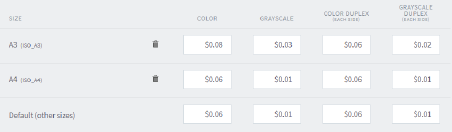
Papercut was introduced to our school mid-2022, printing costs will automatically charge to one of the following shared accounts dependent on a staff members job role:
- Teachers
- Education Support
For credit related concerns, please speak with the Business Manager.
There are multiple photocopiers across the campus:
| Queue/Name | Location | Description |
| Follow-Me | Any photocopier. | Papercut Follow-Me. Print to this queue and walk up to any photocopier to release it. |
| Copier-Admin | Administration | Restricted to Leadership & Administration only. |
| Copier-Staff | Library | Colour. |
| Copier-Junior | Junior Building (Prep – 2) | Black & White only. |
| Copier-Middle | Middle Building (3 – 4) | Black & White only. |
| Copier-Senior | Senior Building (5 – 6) | Black & White only. |
Toner
ICT is automatically notified when the toner is low, a new toner cartridge can only be replaced once the current toner is completely empty, please don’t take the toner out and shake it as the device will get confused and automatically order another toner from our supplier.
Error
If a photocopier is jammed badly or playing up, please log a job on the Helpdesk so we can fix it when available.
Printing Charges
Checking Print Balance
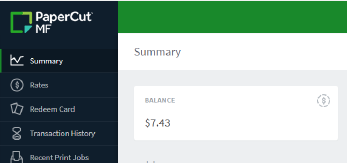
Your print balance is accessible by either opening the PaperCut MF Client which is installed on all staff notebooks or when you are on the school network click on the PaperCut icon on the Intranet homepage and login with your education account credentials.
Printing Guides
Basic information on how to use the printers such as filling the paper trays, logging into PaperCut and what some of the button do on the touch panel can be found on the Staff Share Google Drive: How To: Printing
Compass
Compass can be accessed by a shortcut on the Springside Intranet or directly: https://springsideps-vic.compass.education/.
When logging on, leave the username and password field blank and click the orange button:
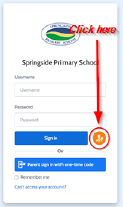
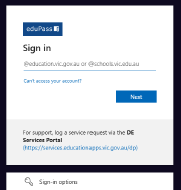
On the following screen you can then enter your education email address and password to sign in:
Google Drive
Springside primarily uses Google Drive as our file storage solution, to access Google Drive simply use the shortcut on the Staff Intranet or alternatively navigate to https://drive.google.com/, if you prompted to login simply enter your education email address and password.
Once you have logged into Google Drive on the left-hand side in the navigation menu you can access your own personal Google Drive by clicking My Drive or open the school share’s by clicking Shared Drives:
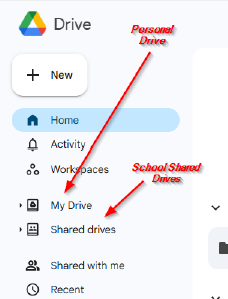
Please note: Access to the School drives is only granted to users with an @education account, for security reasons content should not be shared via personal email addresses, e.g., Hotmail, Gmail, etc.
Internet Filtering
Our school is integrated with the Departments web filtering solution ZScaler. ZScaler is an application that is installed on staff devices which require web access such as school provided iPads and notebooks, if you are not logged into ZScaler when connected to the eduStar network your Internet access will be restricted to the same level that applies to students, most importantly this will affect Youtube access.
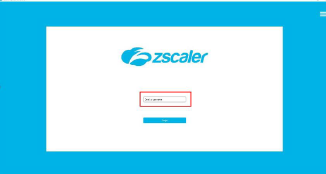
To ensure you are logged into ZScaler simply open the application (If you are on a PC, you can find ZScaler in the Start Menu, on an iPad it should appear on the home screen as an app).
If you need to login, simply enter your education email address and click Login.
On the following screen ensure you select Zscalerone from the Cloud options.
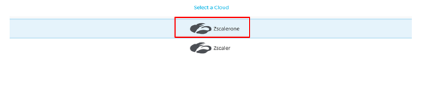
Once you have successfully logged in, ZScaler will run in the background and no further action will be required.
Was this article helpful?
That’s Great!
Thank you for your feedback
Sorry! We couldn't be helpful
Thank you for your feedback
Feedback sent
We appreciate your effort and will try to fix the article